
Introduction
In modern integration landscapes, especially within a Hybrid Integration Platform (HIP), it is common to deal with a growing number of integrations. These integrations are often implemented using Azure Logic Apps Standard and deployed across multiple resource groups to ensure proper isolation, governance, and lifecycle management.
At the same time, organizations aim to optimize cost and networking by sharing underlying infrastructure components such as App Service Plans, virtual networks, and other integration resources.
From a development perspective, this introduces a challenge: how do you efficiently work with many of Logic App Standard projects within a single repository, without sacrificing developer productivity?
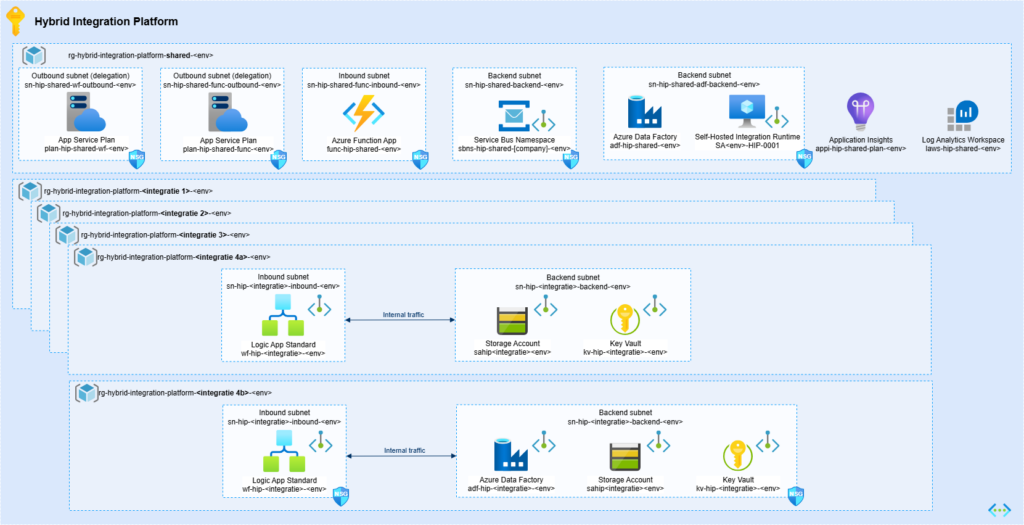
I hope that this article provides you a practical and scalable approach to manage multiple Logic App Standard projects in Visual Studio Code, including a step-by-step guide to implement a multi-workspace setup that preserves full designer functionality.
The challenge
When working with Logic Apps Standard in Visual Studio Code, the tooling imposes a strict requirement: the Logic Apps Designer only works when the project structure is correct and the workspace root is set to the Logic App Standard root.
A valid Logic App Standard project must include:
- An
Artifactsfolder (withMapsandSchemas) - Individual folders per workflow (each containing
workflow.json) - A
.vscodefolder (withextensions.json,launch.json,settings.json,tasks.json) - A
workflow-designtimefolder (includinghost.jsonandlocal.settings.json) - Root files such as
connections.jsonandparameters.json
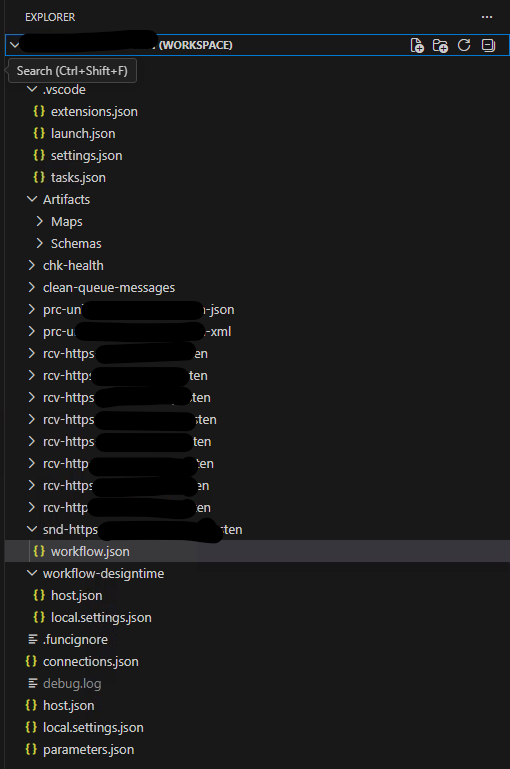
If this structure is not respected, the designer fails with the well-known error:
Error: Error in determining project root. Please confirm project structure is correct.
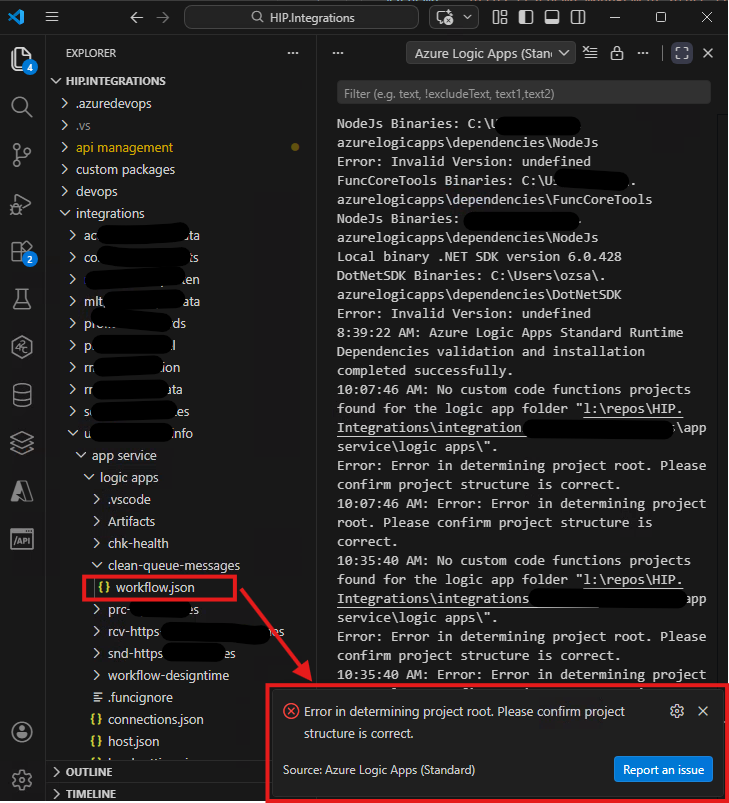
In smaller projects, this is manageable. However, in enterprise environments:
- Multiple integrations may be grouped in a single Git repository (often Azure DevOps)
- Each integration maps to a separate Logic App Standard deployment
- Each Logic App Standard has its own workspace requirement
This leads to a challenge: Developers are forced into constant context switching between workspace files, which likely impacts productivity and increases the likelihood of errors.
The Solution: A multi-workspace approach
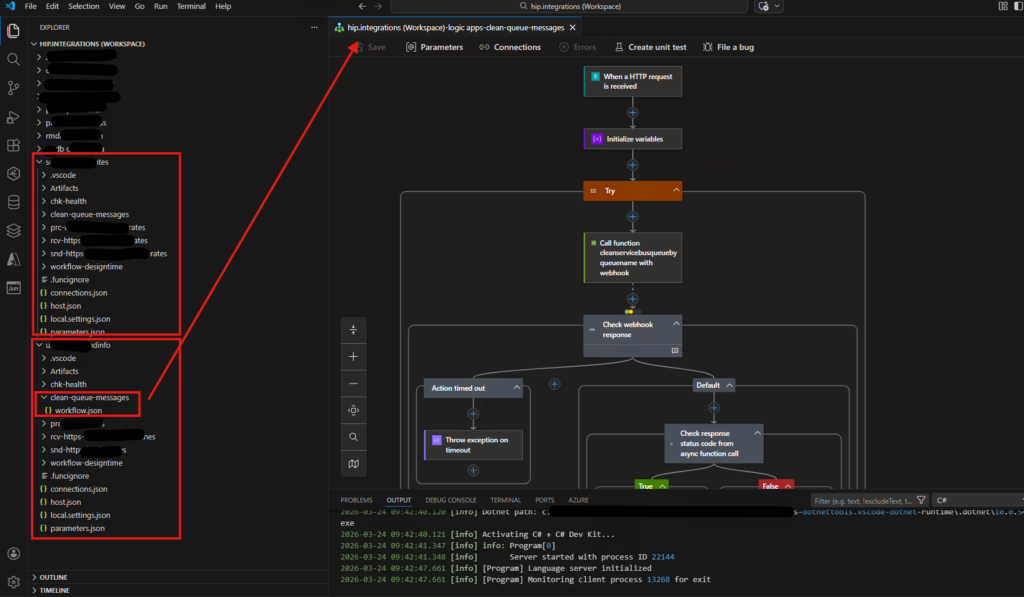
The key insight is that Visual Studio Code allows multiple folders within a single workspace, and the Logic Apps Designer will function correctly as long as each folder entry points to a valid Logic App Standard root.
This enables a nice workaround: Instead of maintaining separate workspace files per integration, you can define a single workspace that references multiple Logic App Standard project roots.
Step 1: Ensure proper project structure
Each Logic App Standard project must follow the required structure.
For example:
integration-a/
└── app service/
    └── logic apps/
        ├── Artifacts/
        ├── workflow1/
        ├── workflow2/
        ├── .vscode/
        ├── workflow-designtime/
        ├── connections.json
        └── parameters.json
This is required, the designer depends on this structure.
Step 2: Create a root workspace file
At the root of your repository (where all integrations are located), create a .code-workspace file. Please note that the sub-folder structure might be different for you.
Example:
{
  "folders": [
    {
      "name": "Integration-1",
      "path": "./integration 1/app service/logic apps"
    },
    {
      "name": "Integration-2",
      "path": "./integration 2/app service/logic apps"
    },
    {
      "name": "Integration-3",
      "path": "./integration 3/app service/logic apps"
    },
    {
      "name": "Integration-4",
      "path": "./integration 4/app service/logic apps"
    },
    {
      "name": "Integration-5",
      "path": "./integration 1/app service/logic apps"
    },
    {
      "name": "Integration-N",
      "path": "./integration N/app service/logic apps"
    },
  ],
  "settings": {
    "terminal.integrated.env.windows": {
      "PATH": "C:\\Users\\[user]\\.azurelogicapps\\dependencies\\DotNetSDK;${env:PATH}"
    },
    "omnisharp.dotNetCliPaths": [
      "C:\\Users\\[user]\\.azurelogicapps\\dependencies\\DotNetSDK"
    ]
  }
}
Step 3: Understand why this works
Each folder entry in the workspace:
- Points directly to a valid Logic App Standard root
- Contains its own
.vscodeandworkflow-designtimeconfiguration - Is independently recognized by the Logic Apps extension
And as a result:
- The designer loads correctly for each Logic App
- You avoid the “project root” error
- You can navigate across integrations without switching workspace files
Step 4: Open the workspace in Visual Studio Code
- Open Visual Studio Code
- Select File → Open Workspace from File
- Choose your
.code-workspacefile
You will now see:
Step 5: Operational benefits
This approach provides several tangible benefits:
1. Reduced Context Switching: no need to open and close different workspace files.
2. Improved Developer Productivity: developers can work across integrations seamlessly.
3. Scalable Repository Management: supports monorepo strategies without compromising tooling.
4. Alignment with HIP Architecture: fits naturally with architectures where:
- Integrations are isolated per resource group
- Infrastructure is shared for cost and networking efficiency
- Reuse of bicep templates and yaml pipelines is promoted
Conclusion
As integration landscapes grow, so does the complexity of managing development environments. While Logic Apps Standard provides a powerful and flexible runtime model, its dependency on strict project structures introduces difficulties when working at scale.
The multi-workspace approach described in this article offers a practical and effective solution:
- It respects the requirements of the Logic Apps Designer
- It aligns with enterprise repository strategies
- It improves the developer experience
By structuring your workspace file to include multiple Logic App Standard roots, you can eliminate unnecessary context switching while maintaining full functionality. This pattern is valuable on Integration Platforms, where reuse, standardization, and scalability are essential.
Adopting this approach will allow your teams to focus less on tooling constraints and more on delivering integration value.
Leave a Reply