
This article was originally published on LinkedIn.
I have been working for my client for more than a year now and I have been assigned the task to architect a company wide integration platform based on Logic App Standard, Service Bus, Storage, Function Apps and Azure Data Factory. And with a growing amount of integrations, the need of scaling our App Service Plan/Logic Apps Standard became reality. Unfortunately – due to the use of Service Bus (actions) for persistance and decoupling – we have been facing a lot of issues with affinity requirements of Service Bus SDK and the scaling of our Logic App Standard instances.
Because the solution is not that straight forward and poorly documented, I wanted to share all the things that have been done over the past 6 months as part of the ticket that we had opened at Microsoft. Hopefully this will help other integration teams in their journey with scaling their integrations (and save valuable time).
In April/May 2024, it became apparent that there we had sporadic issues with the Logic App Standard actions for Service Bus. My team wanted to set up auto-scaling of the App Service Plan, as there was a significant volume of integrations being built on our platform.
And since we are using stateful workflows, the links below were used as a guideline:
- Enable stateful mode for stateless built-in connectors – Azure Logic Apps | Microsoft Learn – https://learn.microsoft.com/en-us/azure/connectors/enable-stateful-affinity-built-in-connectors)
- Enable Service Bus and SAP Built-in Connectors for Stateful Logic Apps in Standard – https://techcommunity.microsoft.com/blog/integrationsonazureblog/enabling-service-bus-and-sap-built-in-connectors-for-stateful-logic-apps-in-stan/3820381
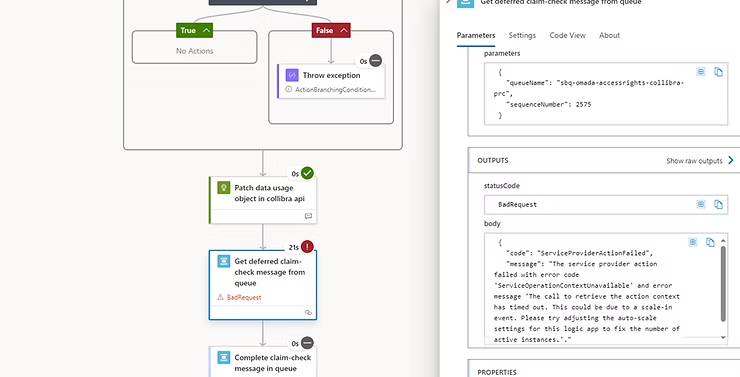
Even though we configured everything properly according to the guidelines from MS, we started to see affinity and scale in issues on our built-in Service Bus actions for completing, deferring and dead-letter messages. And the following minimalistic error would be shown:
{
    "statusCode": "BadRequest",
    "body": {
        "code": "ServiceProviderActionFailed",
        "message": "The service provider action failed with error code "ServiceOperationContextUnavailable" and error message "The call to retrieve the action context has timed out. This could be due to a scale-in event. Please try adjusting the auto-scale settings for this logic app to fix the number of active instances."."
    }
}
The following image shows what we saw in our workflow runs:
The team was unable to resolve the issue and eventually a ticket was issued to Microsoft in July 2024. The issue was causing deferred messages to remain on the queue, messages to not be dead-lettered or completed (and therefore picked up again). We saw the same thing happening on our session-based queues. This made our integrations unreliable.
Resolving this issue took till early December 2024 and a lot of alignment with #Microsoft happened, many things have been tried to finally resolve the issue.
Do you want to know how we were able to resolve this problem? Keep on reading! The next sections explains in detail which steps were taken and especially which settings were applied to address the issue and fix it.
Additional: Within our platform we use 1 shared App Service Plan across multiple Logic App Standards. The plan is used as shared infrastructure, due to the amount of IP addresses required for a single app service plan (outbound subnet for the shared App Service Plan is /26, inbound subnet per logic app standard is /29), combined with the fact that our dedicated virtual network isn’t an inexhaustible source of addresses and every form of traffic must be configured in the customer’s Firewall.
This means that every new integration has its own Logic App Standard, with this underlying plan as its basis.
Working towards a solution
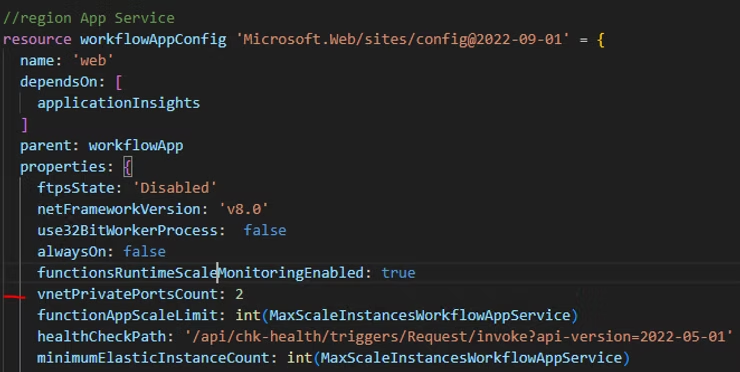
Step 1: vnetPrivatePortsCount for Logic App Standard
In the app settings of the App Service (Logic Apps standard) the setting vnetPrivatePortsCount must be set for the scaling to work correctly. We have set ‘2‘ here.
Also see: Enabling Service Bus and SAP built-in connectors for stateful Logic Apps in Standard – https://techcommunity.microsoft.com/blog/integrationsonazureblog/enabling-service-bus-and-sap-built-in-connectors-for-stateful-logic-apps-in-stan/3820381
Step 2: Always on setting for Logic App Standard
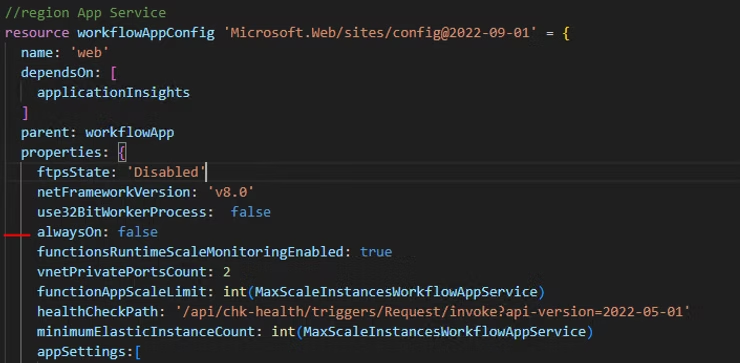
As per January 2025 Microsoft has confirmed that this setting should be on for the required affinity on session based queues.
The Always on setting on the Logic App standard should be on. Within App Service, you can ensure that the underlying infrastructure remains loaded when there is no traffic, so that requests can be processed with lower latency. With Logic App Standard, this is necessary due to the fact that session based Service Bus queues and long running processes require affinity on the same worker node in order to complete processing.

Step 3: Always ready instances and maximum scale out settings for Logic App Standard
Logic App Service Bus connectors are/were stateless by design and to make them work statefully, there were some restrictions until recently.
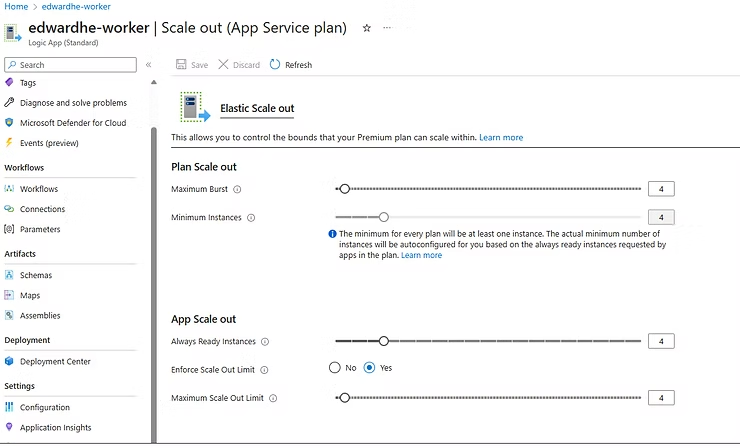
For example, the following settings of the App Service Plan scale out has to be equal to each other:
- Maximum Burst
- Minimum Instances
At the same time, the following settings must be smaller than or equal to the Burst/Instances of the App Service Plan in each Logic App Standard instance:
- Always Ready Instances
- Maximum Scale Out Limit
In a later stage, we discovered through trial and error that these are no longer a hard requirement for Service Bus affinity to work with scaling Logic Apps Standard.
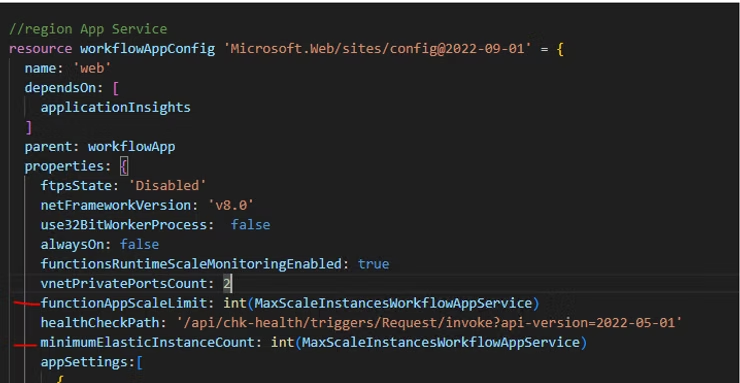
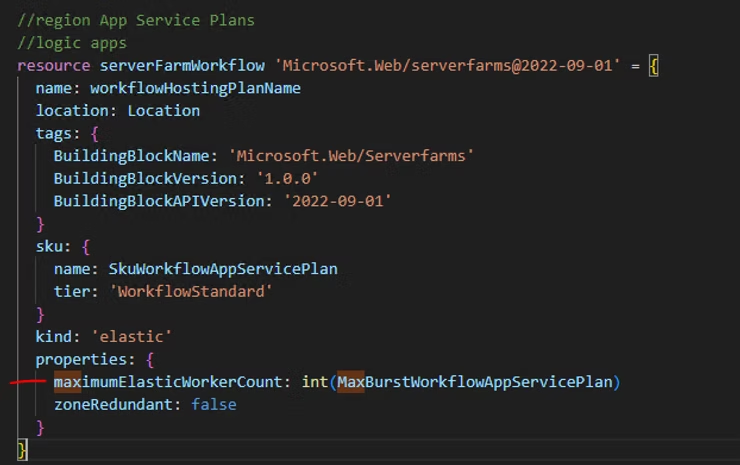
Best practice is to keep the maximum burst and minimum instances the same for the App Service Plan. And per Logic App Standard, the always ready instances and maximum scale out limit may be smaller than or equal to the number entered in the App Service Plan. It is recommended to keep the numbers the same.
Step 4: WEBSITE_PRIVATE_PORTS setting for Logic App Standard
A specific setting needs to be added to the Logic App Standard configuration setting/environment variables called WEBSITE_PRIVATE_PORTS. This is a setting that is needed internally for the affinity of the service bus actions to work properly. The values for this are set to 8002,8003
{
     name: 'WEBSITE_PRIVATE_PORTS'
     value: '8002,8003'
}
Step 5: Other required app settings for Logic App Standard
There are some other important settings that need to be applied in order for the Service Bus affinity to work properly with Logic App Standard scaling. These are:
- The correct extension bundle version. To get rid of the scale-in error messages the workflow runtime needs to be 1.94.13 (or higher). This can be achieved by:
{
      name: 'AzureFunctionsJobHost__extensionBundle__version'
      value: '[1.*, 2.0.0)'
}
- The correct functions extensions version. It needs on version ~4 (or higher in the future)
{
      name: 'FUNCTIONS_EXTENSION_VERSION'
      value: '~4'
}
- The correct functions worker runtime. This one needs to be on dotnet
{
     name: 'FUNCTIONS_WORKER_RUNTIME'
     value: 'dotnet'
}
- The correct website node default version. This one needs to be on ~20 (or higher if/when available)
{
     name: 'WEBSITE_NODE_DEFAULT_VERSION'
     value: '~20'
}
These settings are required to use the latest version of Service Bus actions and triggers in the latest extension bundle runtime of workflows. More on this later.
For more information around these settings, please refer to Edit runtime and environment settings for Standard logic apps – Azure Logic Apps | Microsoft Learn
Step 6: Enable the Health-Check feature for Logic App Standard
Logic Apps Standard has – just like Function Apps – the ability to monitor the underlying instances of the infrastructure and it can replace it if it’s not “healthy”. Health check information can be found in the essentials section of a Logic App Standard.

However, this setting is not easy to configure, since the option is missing in the setting blade of the page. It is quite hidden and difficult to find. To activate health check, do the following:
- Click Diagnose and solve problems in the menu on the left in the portal.
- Then click on Availability and performance, in the middle of the portal page.
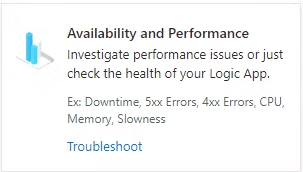
- In the menu on the left you can then choose the Health check feature and click on the button View solution.
- A fly-in will then appear with a button Configure and enable health check feature.
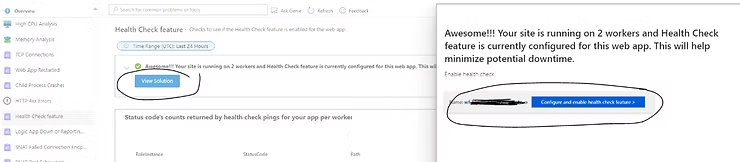
The precise configuration and setup of the health check is explained in detail via the following link: https://learn.microsoft.com/en-us/azure/logic-apps/monitor-health-standard-workflows
Please note that:
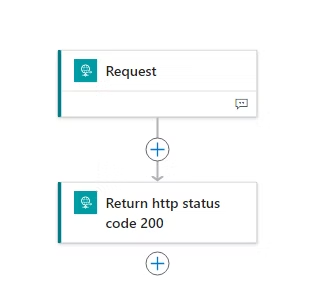
- A chk-health workflow needs to be created to be able to monitor the health. Setting up such a workflow is described in the previous link. The workflow will look like this, and only returns a status 200 to its requestor.
- Health check also requires a change in the host.json of the Logic App Standard:
"extensions": {
    "workflow": {
      "Settings": {
        "Runtime.ApplicationInsightTelemetryVersion": "v2",
        "Workflows.HealthCheckWorkflowName": "chk-health"
      }
    }
  }
- Health check also requires an additional setting named WEBSITE_HEALTHCHECK_MAXPINGFAILURES in the environment variables of the Logic App Standard. This one gets added when the health check feature is enabled by hand. Since our team uses bicep deployments, the following setting is created through code in the App Settings/Environment variables of the Logic App Standard resource.
{
     name: 'WEBSITE_HEALTHCHECK_MAXPINGFAILURES'
     value: '10'
}
- After everything is in place, the last configuration that needs to be done is setting the healthCheckPath property of the Logic App Standard configuration. This path references the relative url of the healtch check workflow.
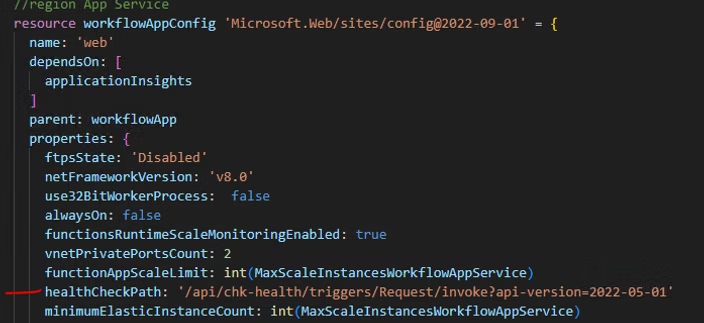
Step 7: NSG to allow internal traffic on TCP/UDP ports 20000-30000 between worker nodes
In order to respect the affinity requirement of the Service Bus SDK (and therefore the actions within a workflow), the instances of the app service plan internally needs to communicate which instance is handling which message. This is needed, because the very same instance needs to retrieve, defer, complete or deadletter this message due to the affinity requirements.
Internally, these worker nodes communicate over TCP and UDP portal 20000-30000 to determine which worker will handle specific actions. Therefore a NSG is needed to allow both inbound and outbound (2 NSG’s) connectivity over these ports.
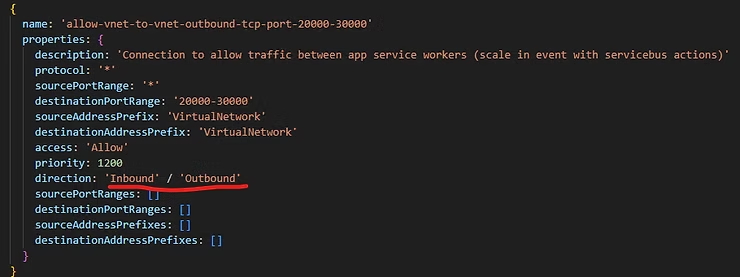
Unfortunately, this step is not documented anywhere on the microsoft pages at the time that we faced our issues. Direction came from MS itself. It seems to be vaguely described here: Ingress traffic on ports 20000-30000 TCP – Microsoft Q&A
Step 8: The final step that puts all pieces together: New Service Bus actions and triggers for Logic App standard that respect affinity and scaling
A significant part of resolving our issues with scaling, was getting new versions of the Logic App Standard actions for Service Bus. While all the previous settings set the base for scalability of our integrations and to facilitate somewhat improvements on the Service bus actions. we were still facing them on very frequent base.
There was a lot of consultation with Microsoft as part of the ticket that we opened. As a result, new versions of the workflow actions and triggers have now been released (some in preview) that respect the affinity that Service Bus requires for the workflows and the underlying infrastructure.
In order to be able to use the latest actions that resolve the issues around geting messages, completing messages, dead-lettering messages, deferring messages and session based queues, a number of settings must be set correctly. These were already mentioned earlier in step 5.
- FUNCTIONS_EXTENSIONS_VERSION: ~ 4
- WEBSITE_NODE_DEFAULT_VERSION: ~ 20
- AzureFunctionJobHost__extensionBundle__version: [1., 2.0.0]
These changes ensure that the workflow version that is used goes to 1.94.13 (or higher). This is the version that resolves all issues.
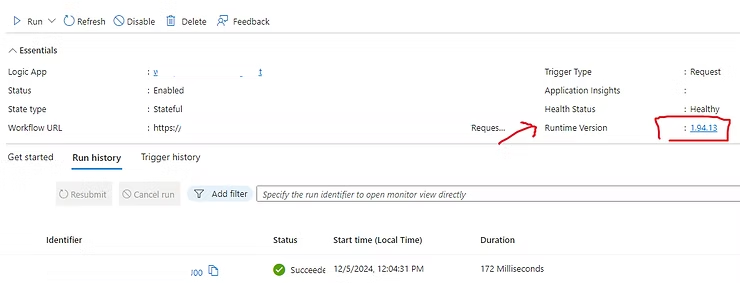
The new version 1.94.13 ensures that new service bus actions are available in the designer (Portal and VS code) and that the existing actions work as expected. These new actions are so-called V2 actions as shown in the image below:
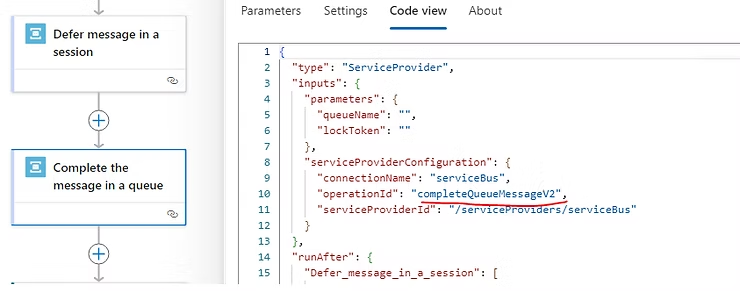
These actions no longer work on the basis of a SequenceNumber/MessageId, but with a LockToken and a QueueName, as is also the case with Consumption based Logic Apps.
Important to keep this in mind
When getting the solution in place it is important to remember that:
- All your existing workflows need to be modified one by one from code behind. Versions v1 (SequenceNumber/MessageId) are incompatible with the v2 (LockToken) versions and cannot be combined at all.
- If your workflow is already using SequenceNumber/MessageId based Service Bus actions (v1), the designer will simply not allow you to use v2. It means that you will have to make manual adjustments from the code to use QueueName and LockTokens (or a combination of all when using sessions), which is quite annoying.
- The list of available actions has become quite long due to the recent additions of new actions. My hope is that Microsoft will consolidate the actions and make them parameter based in the future.
Closing
The lead time to get this issue resolved was long. I have worked closely with Omar Abu Arisheh and Aprana Seth (thanks!) on our ticket and several PG’s on the background. At some point I silently was giving up hope on getting scalling and affinity issue addressed…
But, by implementing the 7 steps above it now works fine based on our test results. Because me and my team spent a serious amount of time on this matter, I wanted to share this with the #logicapps #LogicAppsAviators community.
Hopefully, this step by step guide will help others to tackle Logic App Standard scaling and Service Bus actions affinity issues quicker.
Do you still have any questions? Don’t hesitate to contact me!
Leave a Reply