
This article was originally published on LinkedIn.
Introduction
I have been on the Microsoft Integration playground for more than two decades now. And before moving to Azure Integration Services in 2016 (Logic Apps), I have been working, developing and architecting solutions with BizTalk Server for a long time.
And back in those days, large message handling and processing has always been a challenge. Files that are larger than 10 MB were:
- Extreme memory/IO/resource intensive on the Server,
- Difficult to transform from one format to another,
- Causing performance issues down the road,
- Affecting other integrations,
- Made memory consumption grew exponentially as soon as more shapes (actions) were being added to orchestrations. The same applies for good old functoids in the BizTalk maps.
Especially when large messages arrived at the receive channel, it would likely impact other integrations on the same environment, making the complete server unresponsive and instable. The real evidence can be found on each corner of the world wide web 😉
- Microsoft Knowledge Base Archive – Considerations for Processing Files That Are Larger than 20 MB by Using BizTalk Server
- How BizTalk Server Processes Large Messages – BizTalk Server | Microsoft Learn
- Handling large messages in BizTalk – BizTalkGurus
- Biz Talk processing Large messages | BizTalk Guru
- Large Messages Can Cause Large Problems in BizTalk
- Transfer Large Files using BizTalk – Receive Side – CodeProject
The funny thing is, back then people found some creative workarounds for this problem, like using a claim-check pattern or building custom pipeline components that offloads resource intensive operations on the message box for example.
Unfortunately, this specific challenge is still relevant today even with modern technology. Hopefully this article will inspire some on their journey in handling such performance and resource bottlenecks in an efficient manner on their Azure Integration layer.
Context and background
I have been hired by a pension provider in late 2023, and during this time I have been appointed with designing and implementing a Hybrid Integration Platform with a team of great individuals. The platform has been proven rock solid. In the upcoming year, the Dutch will move to a complete new pension system (WTP) which requires some major and challenging changes in how the pension of more than 5 million people is built up and paid out.
And for this matter the platform team needs to process and store large amounts of data that comes from various sources and on which complex calculations and validations are performed. The outcome of these calculations then needs to be exchanged with e.g. target systems, asset managers, etc. This communication happens through standardized message protocols – SIVI AFD (All Finance Standard).
In short, this means that the platform:
- Receives, processes and stores a lot of data from several systems and sources into a data store over the month,
- Gets large amounts of approved data on a monthly base and feeds this to a calculation model,
- Retrieves hundreds of thousands of records in the form of calculation results from this model,
- Aggregates and transforms this data into SIVI format and internal system messages,
- Shares this data with stakeholders and systems that have an interest in it,
- And it does this, while other existing integrations are also operational during the day.
As one can imagine, the size of this data can be up to 10-100 MB per dataset, which brings its own challenges in terms of stability, performance, business continuity and scalability.
Base integration architecture
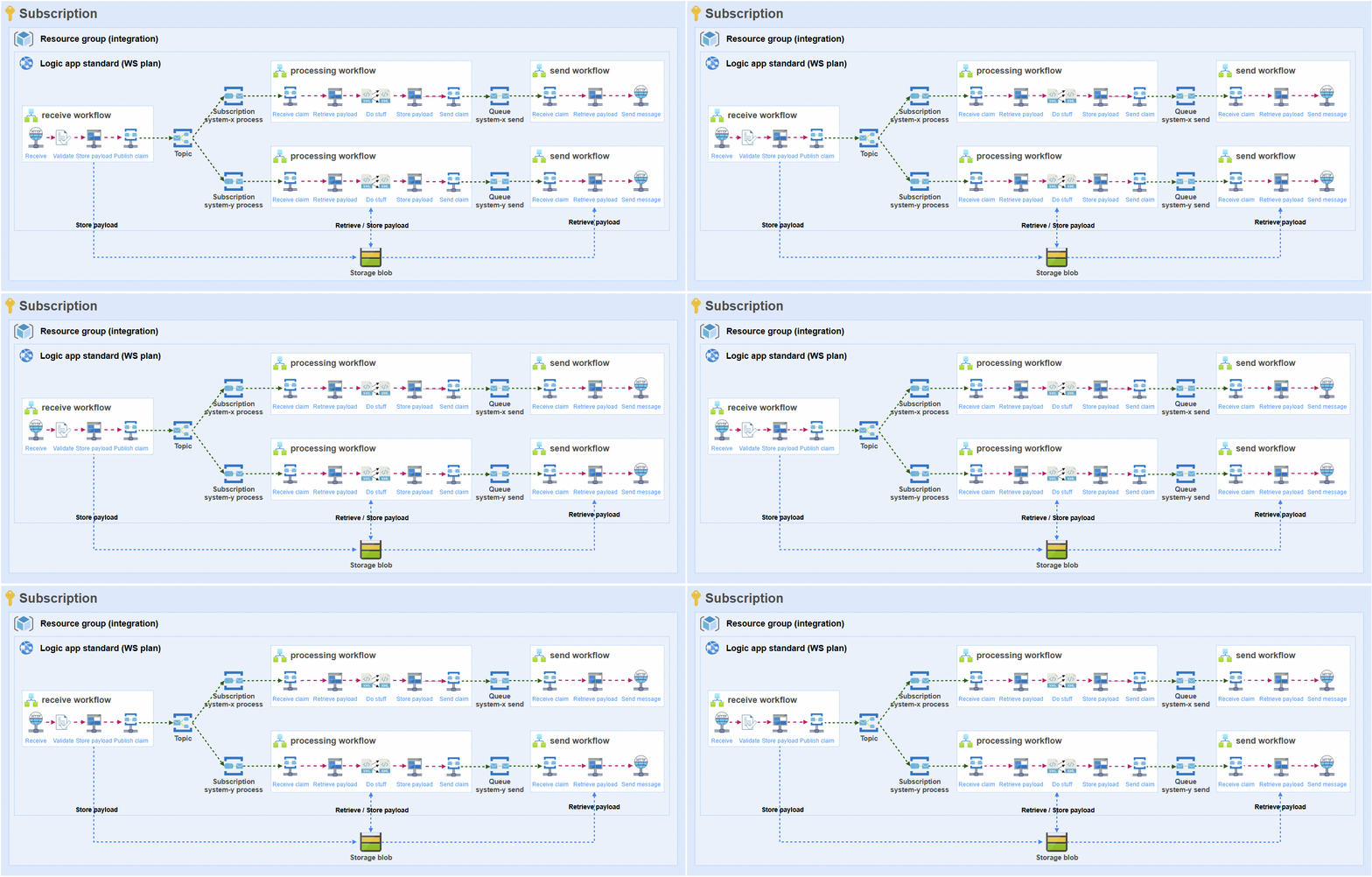
In 2019 I got inspired by a blog post on how to migrate BizTalk Server to Azure Logic Apps. Based on my own experience, I came up with a way of decoupling Logic Apps just like BizTalk Server does. BizTalk makes a clear distinction in receiving (receive ports, pipelines), processing (transform and orchestrate) and sending (pipelines and send ports) messages with the BizTalk message box in between. It also has support for one-to-one, one-to-many and many-to-many integrations. This should be reflected in a cloud-based approach.
Over the years my approach has evolved into perfection and has some flavors based on pull/push mechanisms or to support request/response patterns. This architectural approach addresses the following:
- Guaranteed delivery
- Single responsibility
- Reliable messaging
- Persistency
- Decoupling
- Reusability
- Claim-Check
This is how the approach looks in the basis and this is how each and every integration is built on the platform:
Problem
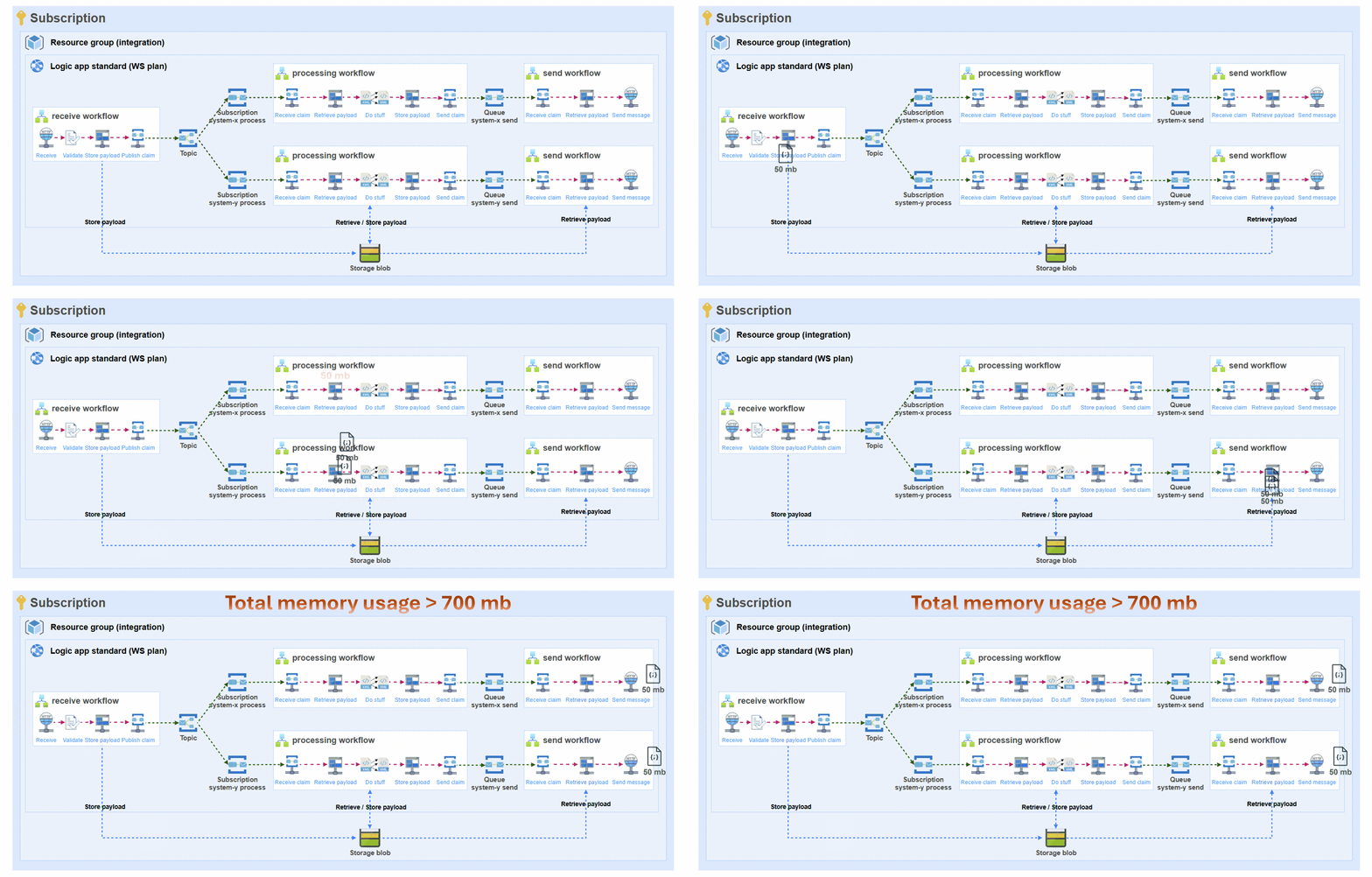
I will start with explaining the challenge that arises when your integration layer receives a single large message or file. Then I’ll visualize it, because a picture is worth 100 words.
Let’s say that an integration receives a message that is 50 MB in size.
- Due to the decoupled nature of this architecture, there will be separate workflows for receiving, processing and sending from source to target(s).
- Due to the previous point, the full payload needs to be retrieved (trigger), stored (blob), retrieved (blob), stored (blob) and retrieved (blob) again so it can ultimately be sent to the target system (e.g. SQL stored procedure).
- The message payload will serve as inputs (and outputs) for actions multiple times. Either it will be transformation, data operation or orchestration of the message. Especially liquid transforms have been proven to consume a lot of memory with bigger messages. I have seen that the liquid transform just never finishes and the run needs to be cancelled because it consumes too much memory and stops functioning.
- If there are multiple subscribers to the message (let’s say 2), there will be multiple processors and senders, and therefore the number of actions that use the data will also multiply by this number.
- Each action will be executed on a workflow node worker and each action consumes memory when processing this message.
The above means that a single message of 50 MB, might take up to many MBs in memory for this specific scenario:
- Receiver: Http trigger (50 MB) + Validate against JSON schema (50 MB) + Store in blob (50 MB) = 150 MB
- Processor: Retrieve blob (50 MB) + Liquid transform (in+out = 100 MB) + Store blob (50 MB) = 200 MB * 2 processors = 400 MB
- Sender: Retrieve blob (50 MB) and Execute SQL stored procedure (50 MB) = 100 MB * 2 send workflows = 200 MB
This simple scenario results in a grand total of 750 MB of memory being consumed for a single run!
See the challenge?
So, what would happen if your integration platform received multiple of these requests at the same time, while also having many other Logic Apps standard integrations on the same Workflow Standard plan (single instance)? It would mean that at some point your App Service Plan will run out of memory.
Let me share what happens next
1) You will start noticing that things like the workflow run history being stuck or not loading and not being able to navigate through the Logic Apps standard blade. Further investigation will show you that your App Service Plan has serious CPU and/or memory issues.


2) When you’re finally able to open a run that is failed or stuck in the running state, actions might show the following and you will notice that the workflow worker node crashed.

3) You might notice absurd processing times, while underlying actions don’t sum up to this time. In the following picture the Retrieve message payload from storage action never got to the point that it started, so we cancelled the run. The node worker ran out of memory or died gracefully.

4) Or you might notice high completion times for actions, or the full workflow runs which is another indication that either CPU or memory is throttling.

Bottom line: if you put your plan under such load, it doesn’t matter if you have 1 or 10 instances. When you achieve the max available CPU or memory, this will happen, and you will need to think of ways to overcome such bottlenecks.
Options
Now that we’ve talked about the context for large messages and the subsequent issues that surface within Logic Apps standard workflows, let’s move to the options that are at hand to overcome these challenges.
Logic Apps standard – Scale Up/Out
The first option that is at hand is to scale the workflow App Service Plan. Just as with Function Apps, Logic Apps standard has the same options for horizontal and vertical scaling of the instances that it has available. It can either be scaled up to a more powerful plan and/or it can be (temporarily) scaled out to more instances.
Scale up
Logic Apps standard has its own plans for the underlying infrastructure, which is different than regular App Services and Function Apps.

As you can see, there are three options available, where the WS1 should (at max) be sufficient for development workloads, since it only has 3.5 GB of memory and 1 vCPU. In my experience, this is too little to develop and test integrations. A more feasible option for development and test workloads is the WS2 plan, which offers 7 GB of memory and 2 vCPU. When developing integrations with large messages or testing multiple integrations at the same time, it is likely to cause problems.
The best plan that Azure offers is the WS3 with 14 GB of memory and 4 vCPU. Having a single instance of this plan for development and test environments should be sufficient for most of the work, but it comes with high costs in comparison to the plans for Function Apps.
In production environments you simply will need to have many WS3 plans as the volume of your integration grows. And while this is fine, many instances do come with big costs.

I’ll keep this short. A Premium v3 P3V3 plan comes with 8 vCPU’s and 32 GB of memory for half the price of the WS3 plan. Something to think about.
Scale out
Because the options for scaling up are limited, you will need to consider scaling out of the WS plan as soon as your integration platform grows.
Logic Apps standard provides a couple of ways to support this:
- Always ready instances. Just as the name suggests, it is the number of instances that are up-and-running and ready to use. Do note that you will pay the full costs per instance per month.
- Maximum burst (and minimum instances). While always ready instances keep running during the month, the maximum burst setting offers the option to scale out under load with a maximum of n instances. When memory/CPU consumption increases, the plan will automatically scale out and when it decreases, it automatically scales in. You only pay for the time that these extra instances are active. During my tests, scaling felt reactive and slow. Even though the health check indicated a degraded state, it took a couple of minutes for the burst setting to scale out. During that time, several runs already ended up in the faulted state due to memory issues.

Pros:
- Logic Apps standard provides options to upgrade the plan to have more memory available,
- Always ready instances will help tackle memory and CPU issues,
- Burst is a nice feature to automatically have more iron available only when it is needed, and I have seen it scale out and in during testing.
Cons:
- Scale-up: the WS plans are very expensive for what you get,
- Scale-out: It would be nice to have rule-based scaling as with Azure Functions instead of the current set-up,
- Scaling out is rather slow. You might bump into memory issues before it starts scaling, which is likely to result in faulty or stuck workflow runs.
- Overall performance of workflow actions is below par in comparison to the processing power of Azure Functions for example,
- As mentioned in a previous post: when you use session-based queues, scaling out becomes somewhat difficult because worker affinity is required by the Service bus SDK. Therefore, you must have always ready instances, and maximum burst may cause undesired behavior.
Azure Data Factory – Large data processing into a datastore or storage location
Another option to consider is Azure Data Factory. We have been using it because it offers some out-of-the-box connectors to interact with storage and Excel files. But getting Azure Data Factory to work with a self-hosted integration runtime in a very secure environment has its own challenges and limitations like only being able to have pipelines, not data flows. This limits the usable functionality of a non-intuitive, limited and clumsy product (e.g. think of more complex transformations). Here, I need to be honest that I have a love-hate relationship with Azure Data Factory based on my own experiences.
Nevertheless, the one thing that Azure Data Factory does excel in is processing large amounts of tabular data from one source to another without too complex mappings in between. In our specific case we have multiple Excel files with different data that is made available on Azure Files. This data needs to be loaded into a SQL database for further analysis and processing.
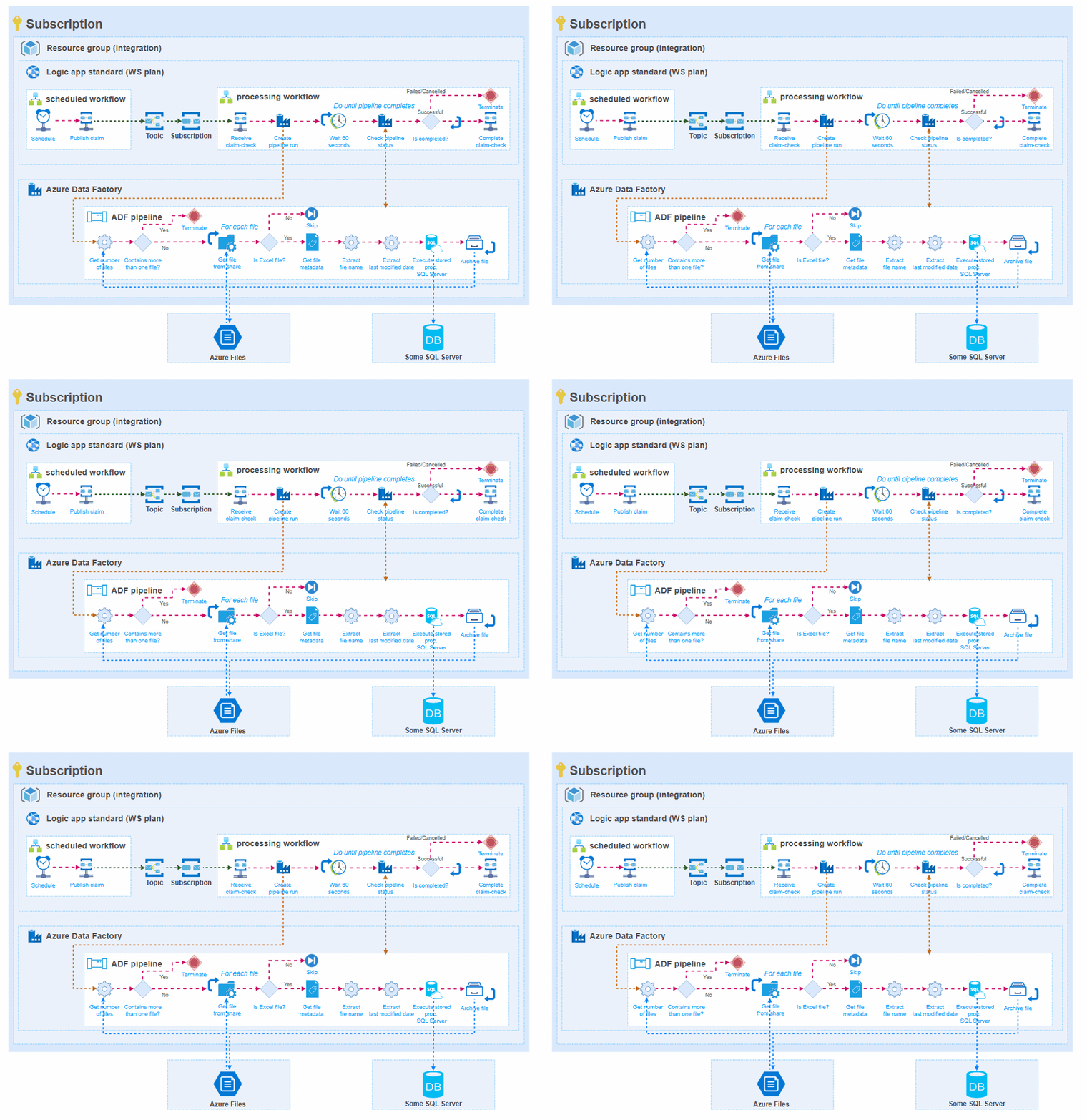
Having a pipeline in Azure Data Factory and having the run information stored there reduces transparency in the overall integration solution. Ideally you want to control run time and process monitoring from the same Logic Apps standard environment. Therefore, I investigated how Azure Data Factory pipelines could co-exist with our existing integration architecture.
In general, this means that:
- There will be a scheduling workflow that initiates data processing in Azure Data Factory. This makes visible the moments that the pipeline was initialized,
- The pub/sub mechanism of Service bus is respected, which makes it possible to process the same file for different target systems through separate pipelines,
- Logic Apps standard primarily used for runtime monitoring. The processing workflow starts a pipeline run and monitors if it was succeeded/failed/cancelled. The state of the workflow run will reflect the run state of the Azure Data Factory pipeline, what gives overall transparency.
- Logging to Application Insights or custom logging to Log Analytics is done (automatically) by Logic Apps standard.
- The Azure Data Factory pipeline is in charge of retrieving the data, processing it, and sending it to the target system.
Pros:
- Can be incorporated in existing integration architectures,
- Good support for large sets of tabular data,
- The data itself doesn’t flow through Logic Apps standard, which greatly reduces memory consumption by the plan, which results in a more stable integration environment,
- It is transparent that integrations are scheduled, have run and what the result of the run is,
- Shifting from possible high WS plan costs (especially with scaling up/out) to lower Azure Data Factory costs.
Cons:
- Azure Data Factory is not the greatest product I’ve seen,
- A separate “Studio” instead of the Azure Portal to monitor and maintain artifacts reduces transparency,
- Difficult to enroll in highly secure environments that require self-hosted integration runtimes,
- A non-intuitive way of developing pipelines, with a limited set of actions available.
Azure Functions – Offloading memory intensive operations
The last – and IMHO – the best option is to leverage Azure Functions in your solutions when support for large messages is required.
Azure Functions are a great way to offload complex logic that is resource heavy or too difficult for a workflow to do. In the previously mentioned scenario, the goal is to reduce memory consumption of the Logic Apps standard WS plan when large messages need to be processed by the integration layer. Azure Functions perform much better and scale better than Logic Apps standard does.
To achieve the best possible results, key is to limit the number of times that the large set of data needs to flow through workflow actions. The following illustration and step-by-step explanation show how we have addressed this.
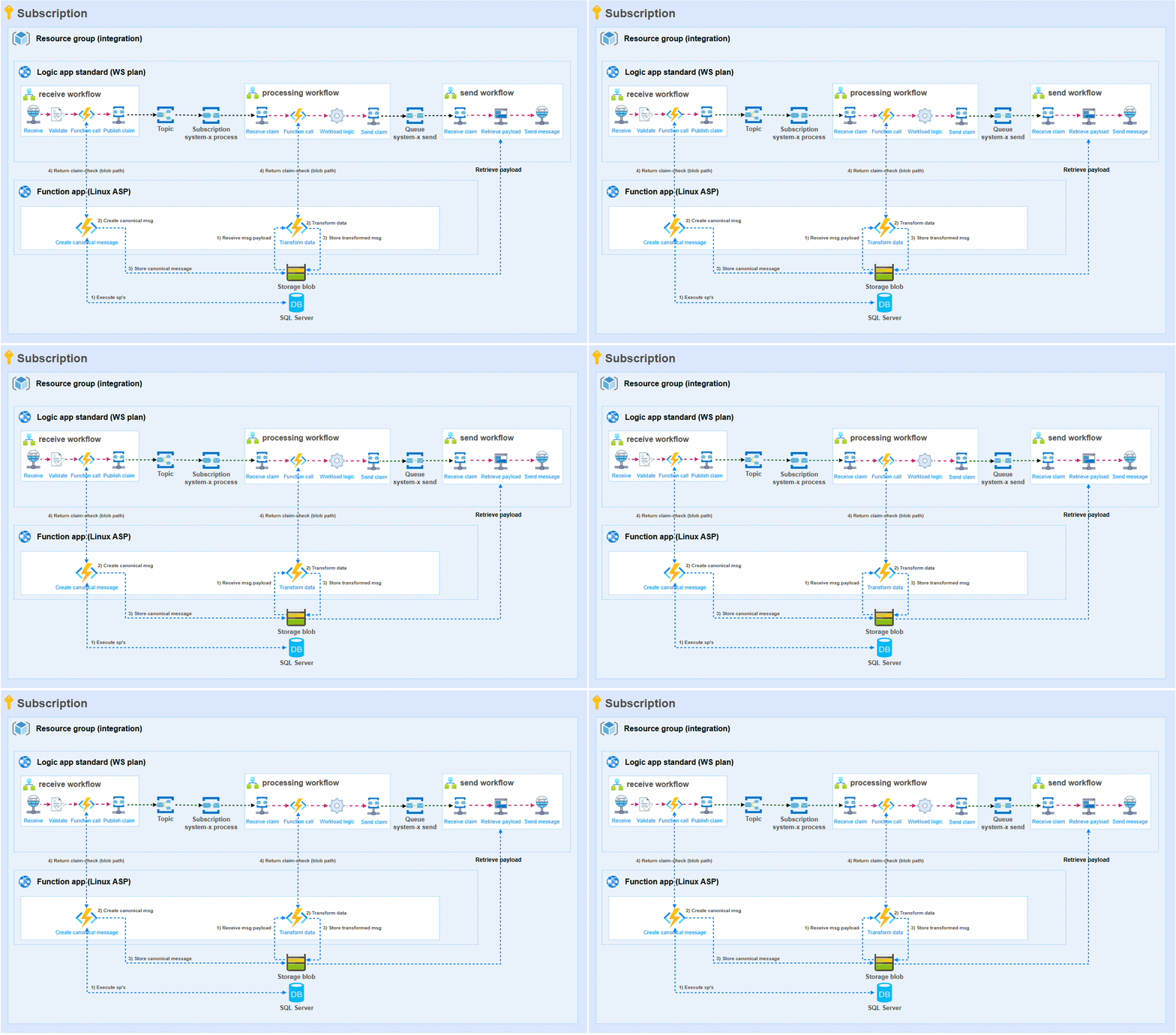
Receive workflow: The receive workflow only receives some metadata. This metadata is needed to get the actual data from a database. The metadata is passed to the first Azure Function.
Function 1 (Create canonical message): Retrieving hundreds of thousands of rows from several SQL tables through stored procedures has moved to the first Azure Function in the illustration. From this dataset, a canonical message is composed. The resulting large message is stored by the Azure Function in Storage blob. The blob path (file location) is given as a response to the workflow. This path is used to publish the claim-check to a Service bus topic.
Processing workflow: The processing workflow only receives the claim-check that contains the blob location. With this information it instructs Function 2 to process this data. The result is the blob path of the transformed data which is put into a claim-check to the send workflow.
Function 2 (Transform data): The blob path provided by the processing workflow is used to retrieve the large file from Storage account. This data is then transformed with .NET code. Data is being aggregated, summed, etc. and the result is a much smaller file for a target system. The resulting transformed message is stored by the Azure Function in Storage blob. The blob path (file location) is given as a response to the workflow. This path is used to publish the claim-check to a Service bus queue.
Send workflow: Finally, the (smaller) file is picked up by the send workflow and delivered to the target system. Taking this approach has saved a lot of memory usage in this particular integration.
Pros:
- Azure functions provide great flexibility in development of custom logic that runs together with Logic Apps,
- Azure Functions performance is a lot better than workflow actions and in general the rule-based scaling of Functions works better,
- Function App Service Plans are way cheaper and provide a multiple of memory and CPU in comparison to Workflow Service plans,
- For some reason Azure Functions do better memory management than Logic Apps standard, which is also built on the same function runtime,
- And therefore, offloading the processing of large files to Azure Functions is a cost saving, better performing, more scalable and stable approach.
Cons:
- Development of Azure Functions takes time and costs development effort/money resulting in a slower time-to-market,
- Azure Functions introduces the need to maintain custom code in your integration solution,
- Additional deployment of Function resources (asp, function app, .net code) is needed from your Azure DevOps pipeline.
Considerations
- Plan your runs. If data has a scheduled nature for processing, you can influence when it will run (e.g. avoiding peak times during business hours).
- Scale-out based on rules. Both Logic Apps standard and Azure Functions have plans that scale easily. Even though I find the scalability of Logic Apps standard a bit clumsy and limiting, the platform offers a convenient way to burst the plan into a maximum number of instances. Functions are easy to scale-out and in based on memory and CPU usage. Use it!
- Avoid large messages and files, if possible. If that isn’t possible, relieve Logic App workflows from handling them by offloading retrieval, transformation and storage of the payload to Azure Functions (in a different App Service Plan that scales individually based on rules). I hate to say that custom coding has a development effort and gives maintenance overhead, but it gives better flexibility, scalability and performance than workflows.
- Offload logic to Azure Functions. In addition to the previous point, use Azure Functions is large message processing must be done. Delegating parts of the processing to a Function will reduce memory usage on you Workflow Standard plan.
- Be aware of the workflow actions that you use on large messages. We have noticed that – when it comes to big XML/Json messages – some actions have difficulties in handling large sets of data. Some of these actions are: Compose message, JavaScript code, Liquid transforms, etc. These are specific actions that manipulate data, and these can be considered memory intensive and have bad performance. In case of a large message, it will negatively impact the workflow run itself and any other Logic Apps on the same App Service Plan.
- Offload non-hierarchical data processing to Azure Data Factory. If you have flat files, Excel workbooks, other data that if column based or flat of nature, put it in Blob storage, Azure File, Database or whatsoever and process it in ADF. Even though I dislike its quirks and limitations, it has better overall capabilities to move (and do simple transformations on) tabular data.
- Start with the end in mind…and design your integration accordingly. Design a robust integration architecture that supports complex and difficult scenarios. If you know on the forehand that there will be a chance that you will need to process large messages, make sure your platform supports it by leveraging EAI patterns that have been around for many years and the specific Azure approaches to implement them.
Conclusion
Logic Apps standard is a great product on the Azure stack. It makes integrations easy to build, easy to maintain, and easy to understand by the business.
Nevertheless, from a performance perspective, it comes with its own set of challenges. While – in the cloud – one shouldn’t be worrying about the underlying infrastructure (serverless, auto scale, etc.), specific complex integration requirements might result in challenges or bottlenecks, especially when handling large messages.
In addition, over the last 5+ years I have experienced quite some limitations with the performance of workflows and their actions. E.g. SFTP, SQL, Data operations just have challenges, limitations, and large execution times when under load or when massive data needs to be processed.
But Azure provides great tooling on the Azure Integration Services stack that complement workflows. A perfect choice is to use Azure Functions, because of the development flexibility to optimize your code and execution. But there are alternatives available like Azure Data Factory which operates great in its own league. Based on the specific requirements, see what resources could complement Logic Apps standard as part of your architecture.
Large files have been around as long as I remember, and the nature of the difficulties with it haven’t changed that much. But the environment in which we operate did change, and it gives us a palette of additional resources to overcome such bottlenecks or limitations.
Leave a Reply