This article has originally been posted on LinkedIn.
Introduction
I remember, somewhere in late 2025, that Microsoft Edge gave me a strange popup, when I was looking into a run history of one of our workflows in Logic App Standard. Without paying active attention to it I clicked the “Block” button of the popup and then all the input and output sections of each workflow action resulted in an error which made no sense. Unfortunately, some of my team members did the same.
After some hours of trying to find a fix, my project team found the setting in Edge which resolved it and we could continue with our work.
Every now and then since then, we get the same notification due to company policies of my client. And last week it happened again, and I was that stupid to press the “Block” button again. Each time this happens, we are questioning ourselves which setting needs to be reverted and how we can find it in Edge. Therefore, I decided to write a little article about it to help others, while at the same time being a memory aid for myself.
Problem
Since we’re using Logic Apps Standard with network isolation, we have an outbound subnet in the Logic Apps virtual network and a private endpoint for all inbound requests.
The virtual network itself is flowing through several company network appliances (e.g. The firewall) and all traffic is routed.
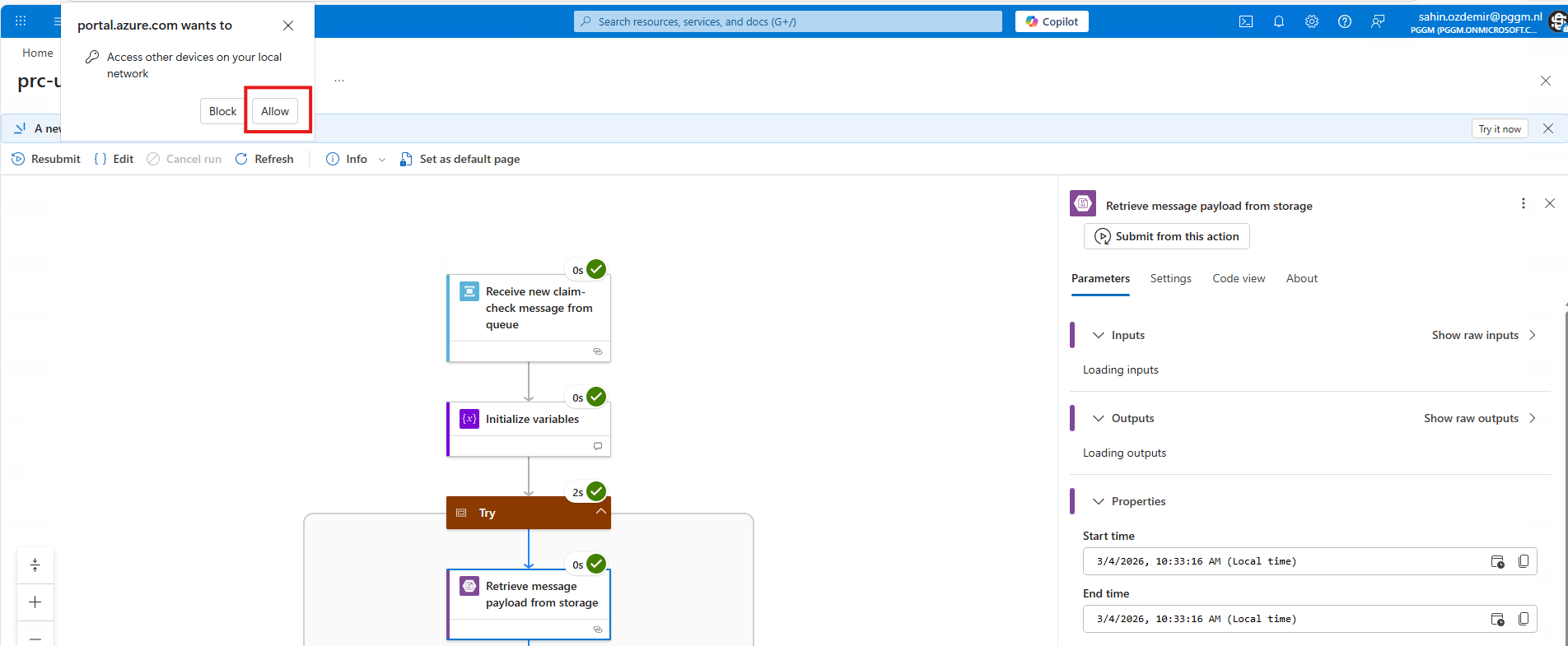
So, when I was working on Logic Apps workflows from the Azure Portal, more specifically checking a specific workflow run, I got the following message:
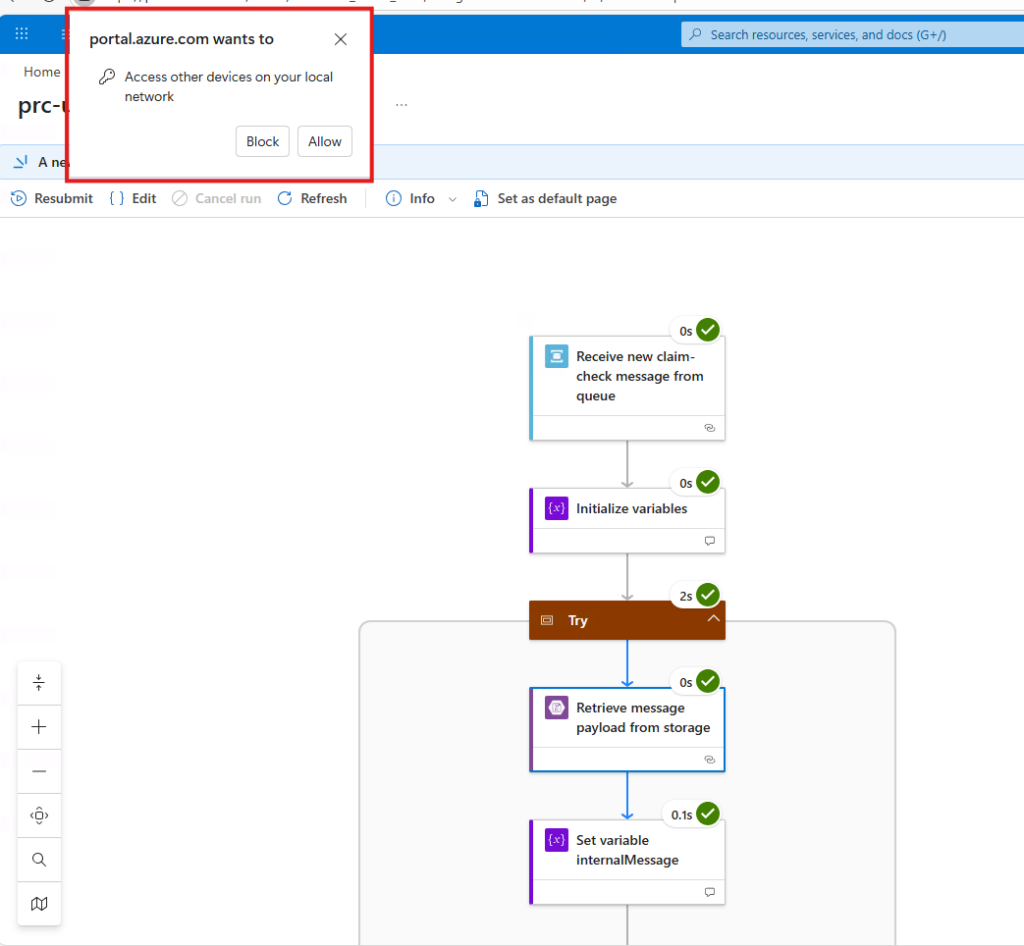
And without paying attention to it I just clicked “Block”. That’s when the issues began. Before diving into that, let’s check what this popup means.
Local network access
The permission prompt from Microsoft Edge (or any other browser that is based on chromium), is a (fairly?) new security feature. It’s called LNA, according to this site. This feature has been introduced to protect users from malicious websites that might try to scan / access devices on your network without your knowledge.
Since you’re working on and with Azure resources that use networking, the portal is requesting this access to retrieve workflow run data (e.g. from the underlying storage account where Logic Apps is storing its history).
Blocking this access will result in the following error when you try to look at the inputs and outputs of a workflow action:
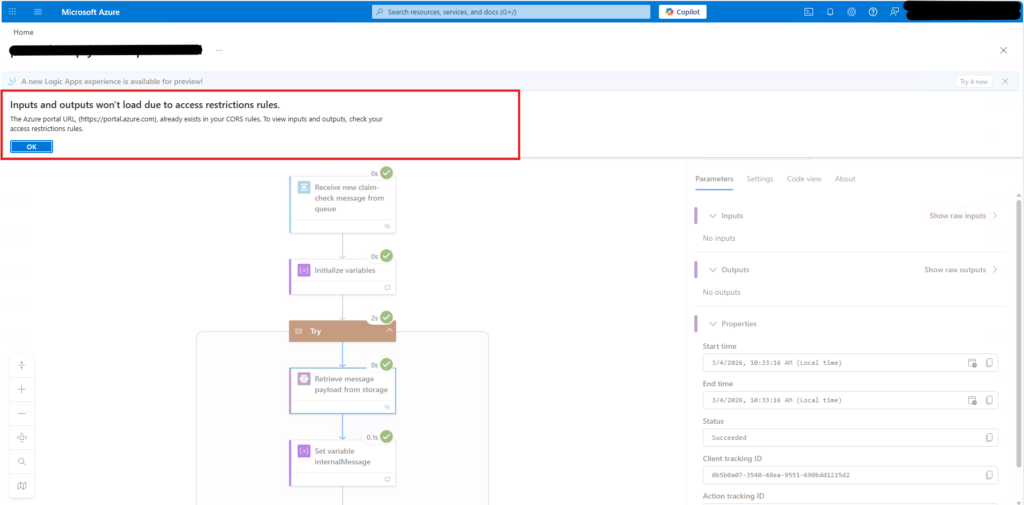
The message will therefore push you in the wrong direction. It says that you need to check if https://portal.azure.com exists in the CORS rules, which is the case (but it’s disabled anyway).
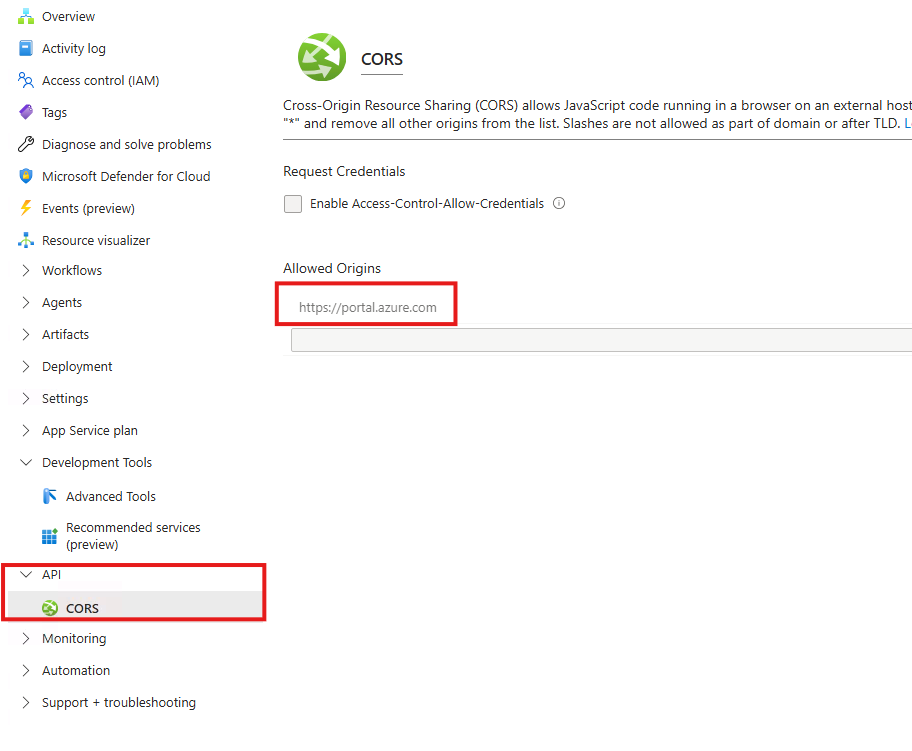
I must say, the error – in this specific case – is somewhat misleading.
Solution
Now the problem is clear, let’s see how the issue can be resolved.
1) Open your edge settings and go to Privacy, search, and services -> Site permissions -> All sites -> and click on azure.com or portal.azure.com .
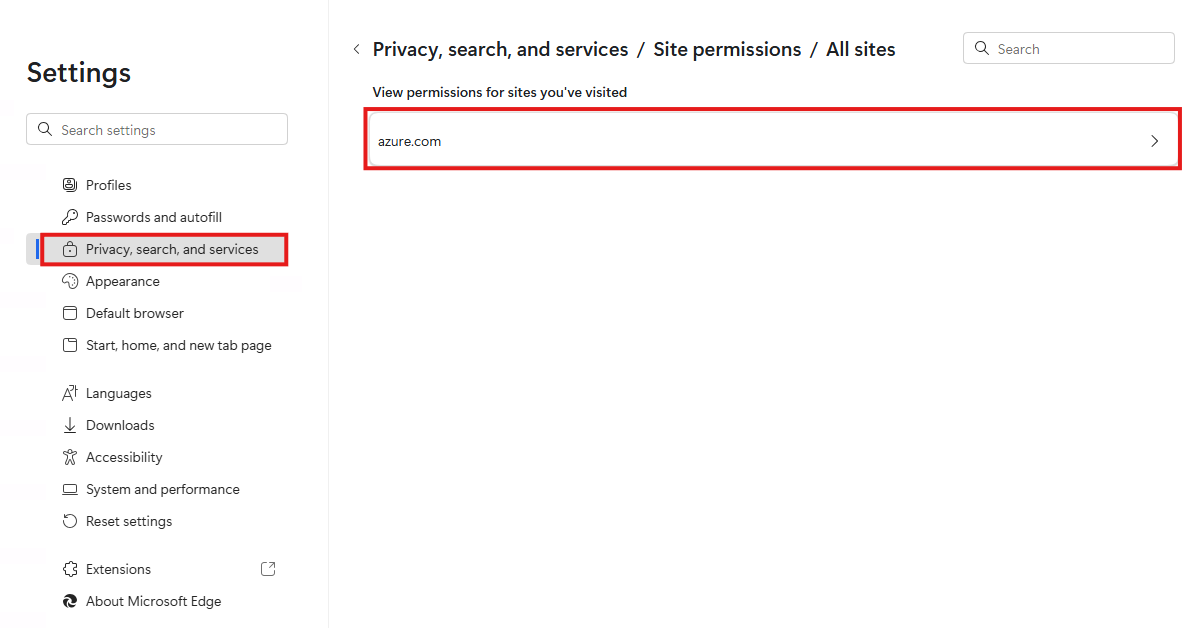
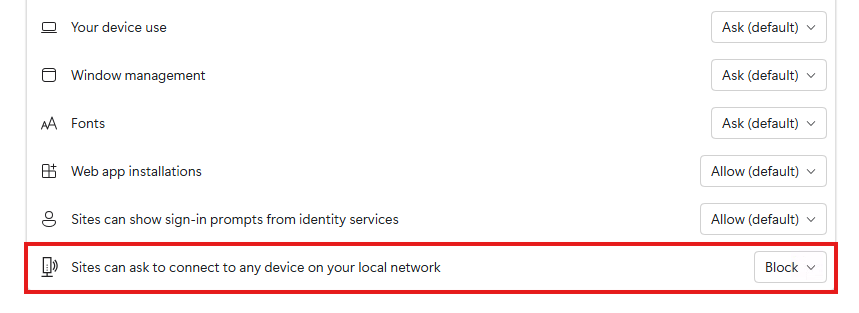
2) Scroll all the way down in the list that is presented. The last one should be Sites can ask to connect to any device on your local network. It should be blocked. Set it to Allow.
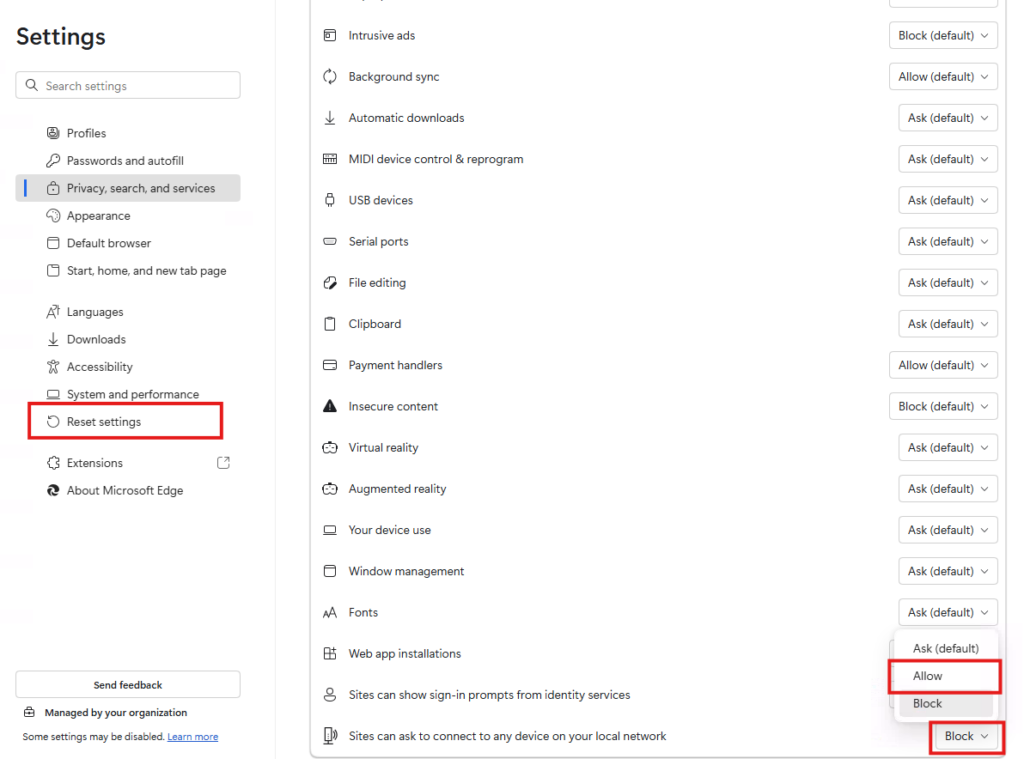
3) I did notice that for some reason the changed value is not respected by Edge. I’m not sure if this is due to policies that my client has configured. In that case, go back to Settings -> Reset settings in Edge, and follow the instructions.
4) After refreshing (restarting Edge or Ctrl + F5) the workflow run details, you will be prompted with the same popup that was presented earlier (and which was blocked). Allow it this time!
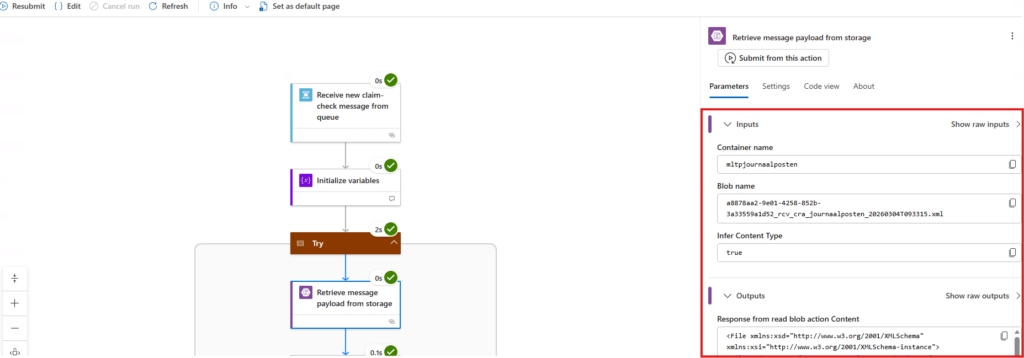
5) Finally, the workflow action inputs and outputs will load correctly and the earlier message about the access restriction has disappeared.
Hope this helps!
Leave a Reply