
This article was originally published on LinkedIn.
Azure Functions are part of a Function App in Azure. Nowadays many people build Functions in order to support business processes or provide cloud functionality/logic of any kind to DoStuff().
While Azure Functions are developed and deployed to run for a specific trigger (e.g. Timer, Http, Event-based) it occasionaly happens that an Azure Function needs to be triggered manually.
Over the years, the required access to manually trigger an Azure Function has been changed, moved around and made somewhat complicated for end-users.
After going through this hassle a couple of days ago, taking time to find the correct solution, I decided to write a small post in order to support others with a step by step guide to achieve the proper access config.
The problem
Microsoft has changed necessary access for manually triggering a Function a couple of times of the past years.
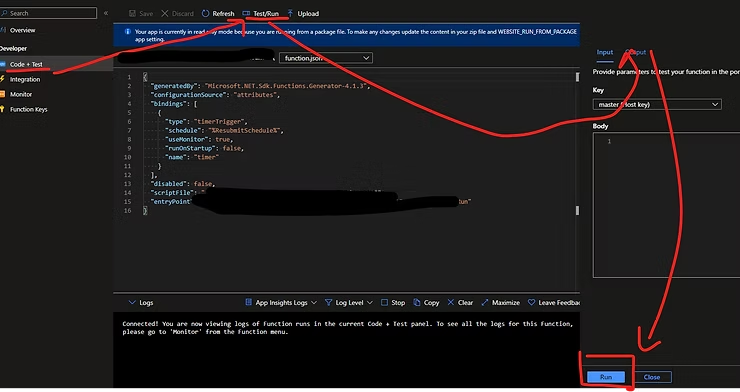
When navigating to the Function App and clicking on a specific function, one can “Code + Test” as shown in the following picture.
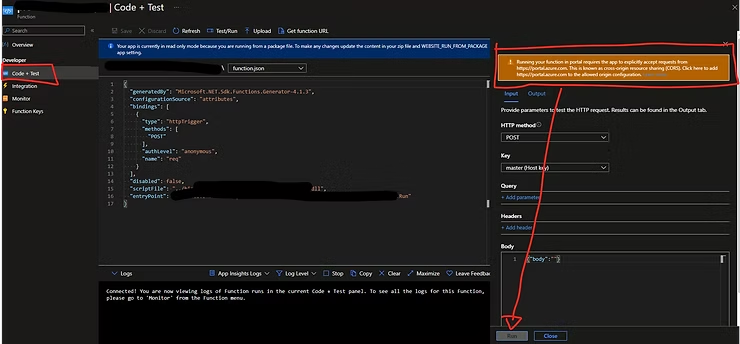
The option to “Run” is disabled and a cryptic message is shown:
“Running your function in portal requires the app to explicitly accept requests from https://portal.azure.com. This is known as cross-origin resource sharing (CORS). Click here to add https://portal.azure.com to the allowed origin configuration”.
The solution
The following is a step by step guide to configure the Azure Function App properly so that manually runs can be started.
1) Go to the Function App in the Azure Portal.
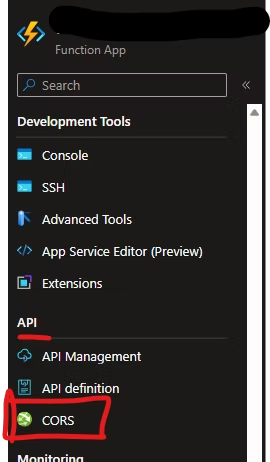
2) Open API and then click CORS.
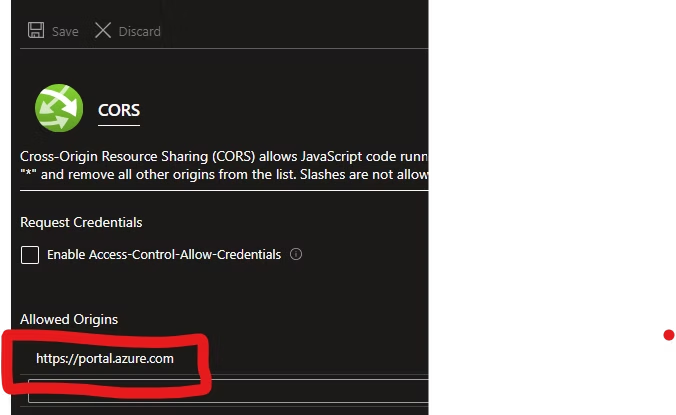
3) Add https://portal.azure.com as allowed origin and click Save.
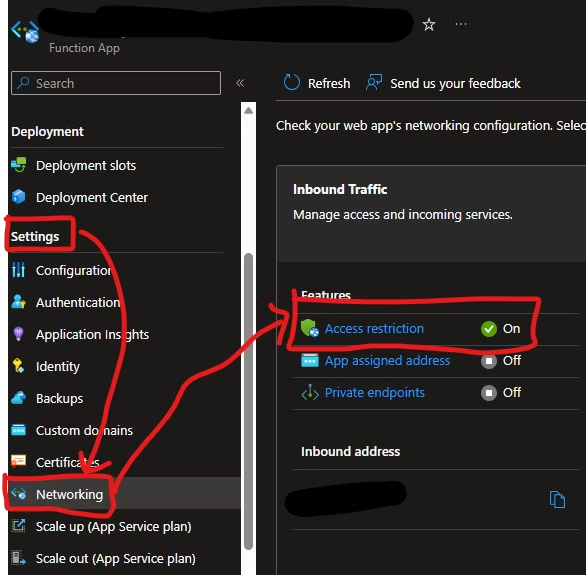
4) Next, Go to Settings and click on Networking. At Inbound Traffic, click on Access restriction (On)
5) Here we need to do 2 things:
a) Add a rule with:
- Priority: [Number]
- Name: [Name for own IP Address]
- Type: IPv4
- Source: x.x.x.x/32 [Your own IP Address]
- Action: Allow
b) Add a rule with:
- Priority: [Number]
- Type: Service Tag
- Service Tag: Azure Cloud
- Name: Azure Cloud
- Action: Allow
6) Save everything and you should be able to manually trigger a timer based function from its “Code + Test” menu item.
7) Voila, you can now manually start a Run.
Hope this helps!
Leave a Reply